Exporting OneNote to Markdown
If you are migrating away from Microsoft OneNote to a Markdown-based system (like Obsidian, BookStack, Joplin, or Logseq), there are three primary tools available depending on your technical needs and organizational restrictions.
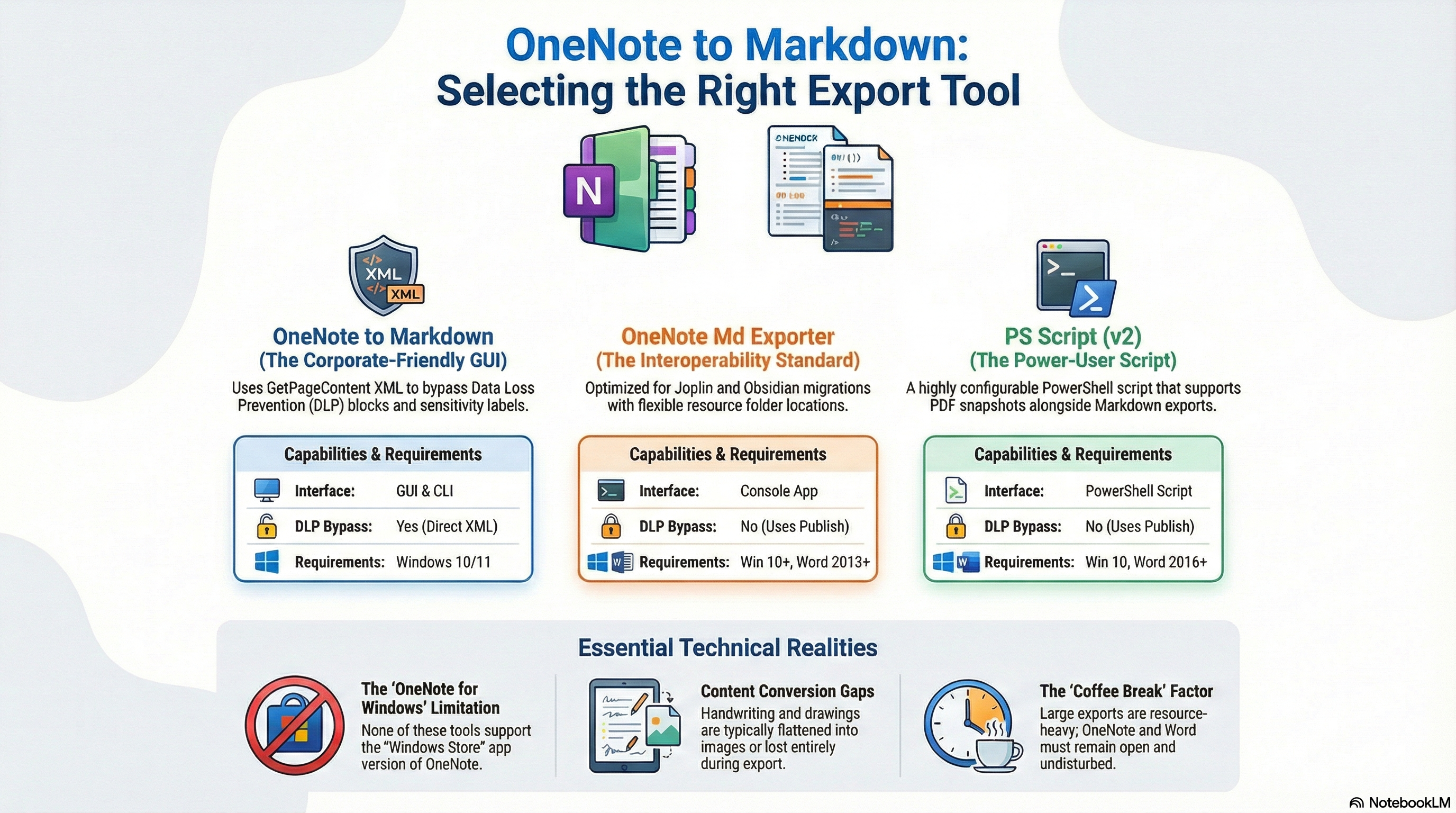
I tested all three of them, and the easiest one was definitively the OneNote to Markdown Exporter (Tool 1) because not only is it a GUI app, but also works extremly fast and bypasses DLP blockers by pulling raw XML and base64 images directly from OneNote's GetPageContent() method.
Bypassing DLP does not trigger the DLP blockers because it does not write intermediate files to disk, which is a common trigger for DLP policies. Instead, it processes the content in-memory, allowing for a seamless export experience even in environments with strict data protection measures.
Tool 1: OneNote to Markdown Exporter (C# Desktop App)
Github: https://github.com/segunak/one-note-to-markdown
Best for: Ease of use, bypassing strict Data Loss Prevention (DLP) policies, and keeping embedded images intact without writing intermediate files to your disk.
Overview
This tool is built with C# and WPF, offering both a Graphical User Interface (GUI) and a Command Line Interface (CLI). It bypasses typical DLP restrictions by using the OneNote GetPageContent() method to pull raw XML and base64 images directly, rather than exporting intermediate Word documents.
Requirements
- OS: Windows 10 or 11.
- Software: Microsoft OneNote Desktop app (installed via Microsoft 365/Office 365, not the retired "OneNote for Windows 10" app).
Usage Highlights
- GUI Mode: Launch
OneNoteMarkdownExporter.exewithout arguments to open a visual tree-view where you can check the boxes of specific notebooks, sections, or pages you want to export. - CLI Mode: Run with command-line arguments (e.g.,
--all,--notebook "Name",--overwrite) for background syncing or scheduled tasks. - Linting: Automatically runs a bundled
markdownlint-clito clean up OneNote's formatting inconsistencies.
Tool 2: OneNote Md Exporter (.NET Console App)
Github: https://github.com/alxnbl/onenote-md-exporter
Best for: Users who want to export directly to the Joplin Raw Directory format, or who want basic console-based exports with YAML front-matter headers.
Overview
This tool is a DotNet 10 self-contained console application. It exports your pages as intermediate Word (.docx) files and then translates them into Markdown using PanDoc. Note: Because it writes files to disk using OneNote's Publish() method, this tool may fail if your organization enforces strict Data Loss Prevention (DLP) policies.
Requirements
- OS: Windows 10 or higher.
- Software: Microsoft OneNote (>= 2013) and Microsoft Word (>= 2013).
Usage Highlights
- Getting Started: Extract the downloaded release and run
OneNoteMdExporter.exe. - Process: Select the notebook to export, choose the export format (Markdown or Joplin), edit advanced settings if desired, and run.
- Metadata: Can automatically inject a YAML front-matter header containing page metadata (like title, created date, updated date) into each
.mdfile. - Automation: Full command-line support is available by running
OneNoteMdExporter.exe --help.
Tool 3: ConvertOneNote2MarkDown (PowerShell Script)
Github: https://github.com/theohbrothers/ConvertOneNote2MarkDown
Best for: Extensive customization, defining specific Markdown flavors (e.g., GitHub-Flavored Markdown, MultiMarkdown), creating detailed folder hierarchies, and exporting PDFs alongside Markdown.
Overview
This is a highly configurable PowerShell script (ConvertOneNote2MarkDown-v2.ps1) that utilizes the OneNote Object Model. Like Tool 2, it converts pages to Word documents first and then relies on Pandoc for the Markdown conversion, making it susceptible to enterprise DLP blockers.
Requirements
- OS: Windows 10 or 11.
- PowerShell: Version 5.x up to 7.0.x (Versions 7.1 and above are unsupported due to deprecated Win32 GAC assemblies).
- Software: Microsoft OneNote (>= 2016), Microsoft Word (>= 2016), and Pandoc (>= 2.11.2).
Usage Highlights
- Pre-requisites: Hidden or collapsed paragraphs will not export. It is highly recommended to install the provided Onetastic macro to expand all paragraphs prior to exporting.
- Execution: Open PowerShell as an Administrator, navigate to the script folder, and run
.\ConvertOneNote2MarkDown-v2.ps1. - Interactive Prompts: The script will interactively ask you for your preferred folder structures (e.g., subfolders vs. page prefixes), whether to keep intermediate
.docxfiles, and your target Markdown flavor. - Automation: To bypass the interactive prompts for automated runs, rename the included
config.example.ps1file toconfig.ps1and configure your desired settings within the file.