
Increase LXC Disk Size in Proxmox
Here is a refined, concise, and professional version of your text:
I recently noticed that my BookStack LXC container on Proxmox had only 8 GB of storage assigned. Fortunately, increasing the disk size is straightforward.
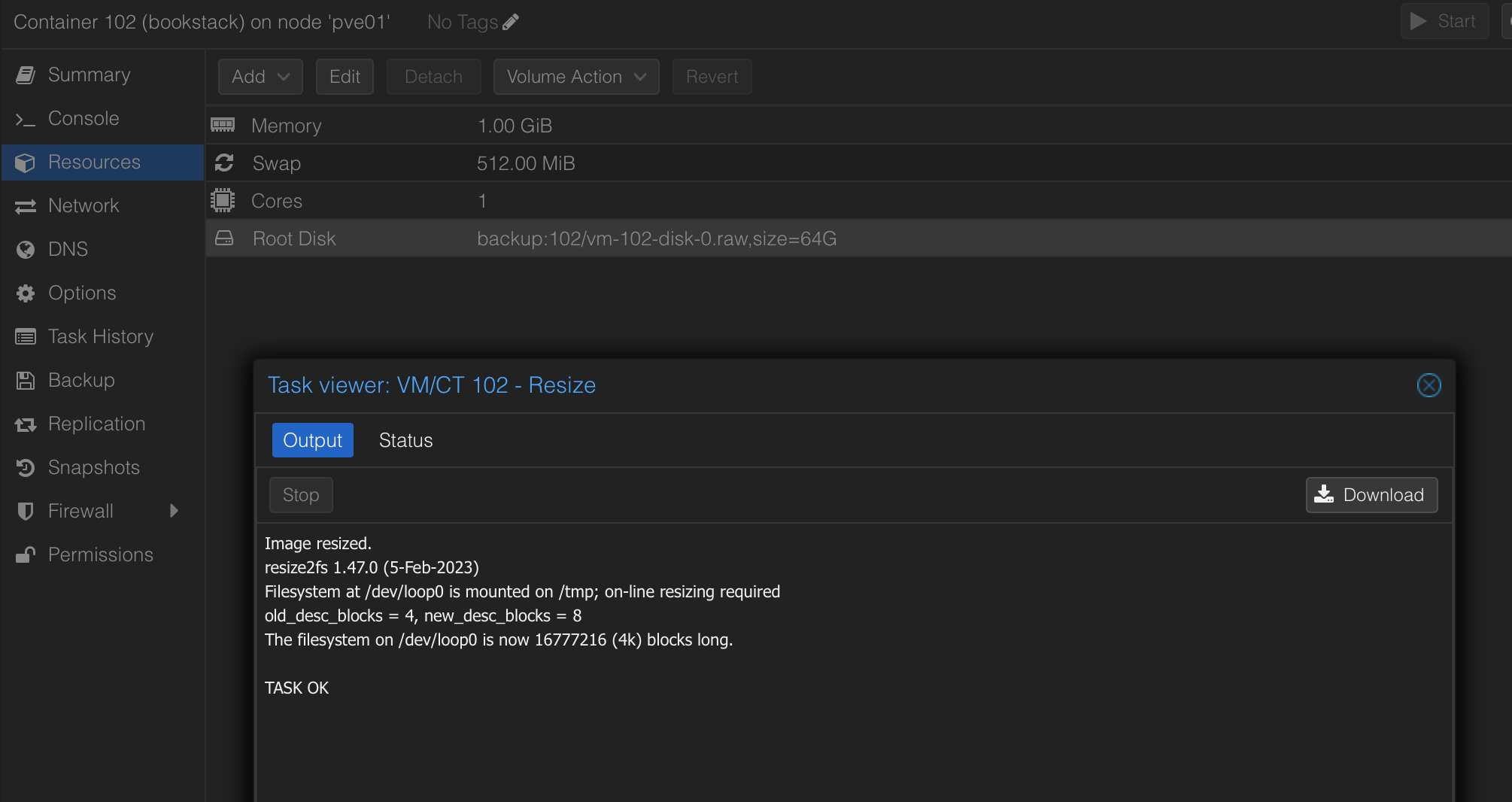
Increasing the disk size via the Proxmox web interface
The simplest method is through the Proxmox VE interface:
- Log in to the Proxmox UI.
- Open your container and navigate to Resources.
- Select the Root Disk.
- In the Volume Action dropdown, choose Resize.
- Enter how much additional space you want to add (you specify the increment, not the final size).
Note: You cannot decrease disk size here.
Increasing the disk size via the command line
You can also resize the disk directly from the Proxmox host:
- SSH into your Proxmox server.
- Run the
pct resizecommand with the new size:
pct resize <vmid> <disk> <size>In my case, I increased the root disk of my Bookstack container (ID 105) to 64 GB:
pct resize 105 rootfs 32GAfter resizing, log into the container and verify the new size with:
df -hBoth methods work reliably, and the UI will reflect the updated disk size immediately.
If you'd like, I can convert this into a markdown blog post with frontmatter and tags.