
How to Change UCG WAN IP Address
During the initial setup of the UCG Ultra, the ISP router's DHCP server was enabled, and it successfully assigned an IP address to the UCG Ultra. Later, I configured the ISP router to always assign the same IP address to the UCG Ultra based on its MAC address.
However, after disabling the DHCP server on the ISP router, no IP addresses were assigned---neither dynamically nor for devices with static reservations.
Resolving the Issue Without Re-enabling DHCP
To assign a static IP address to the UCG Ultra without relying on the ISP router's DHCP server:
-
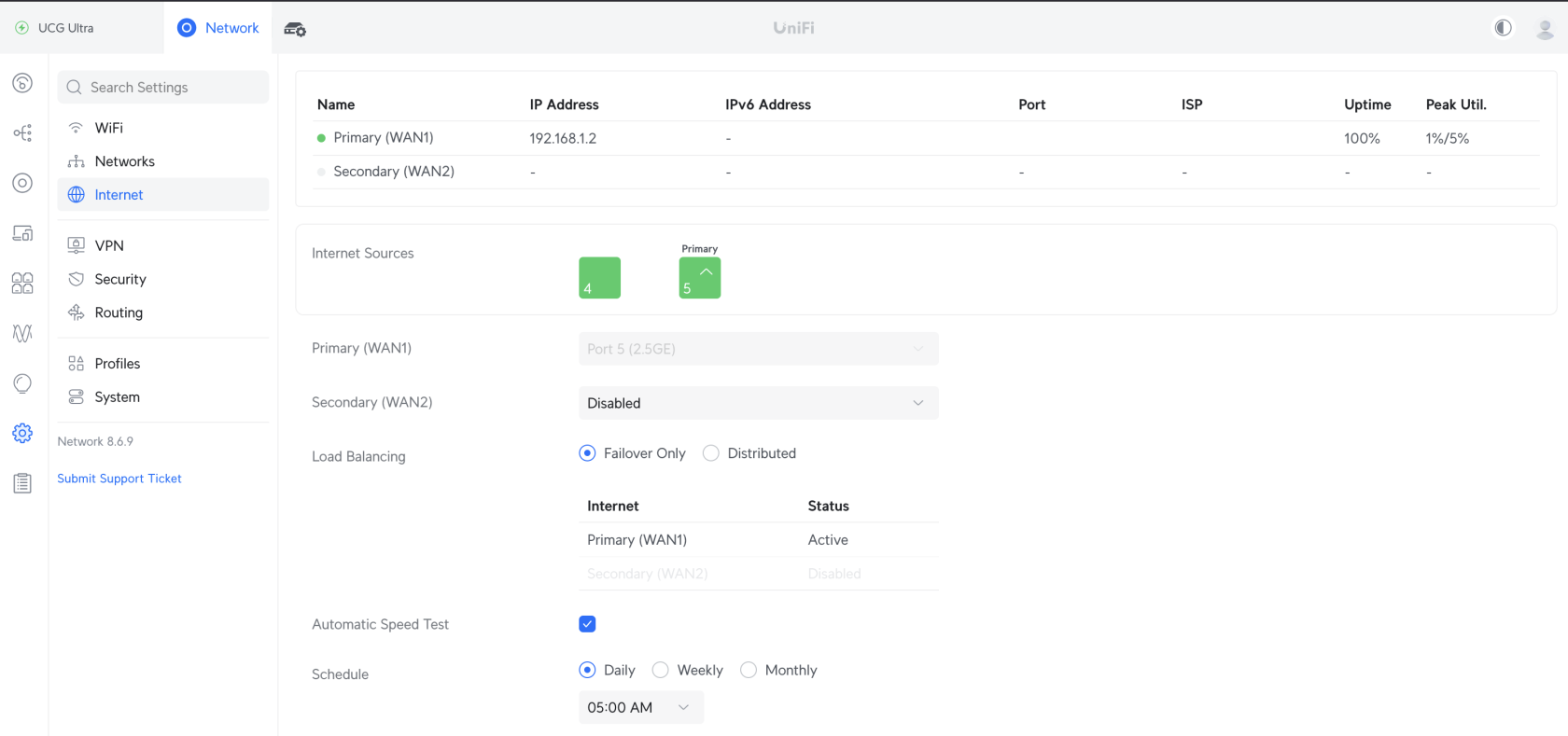
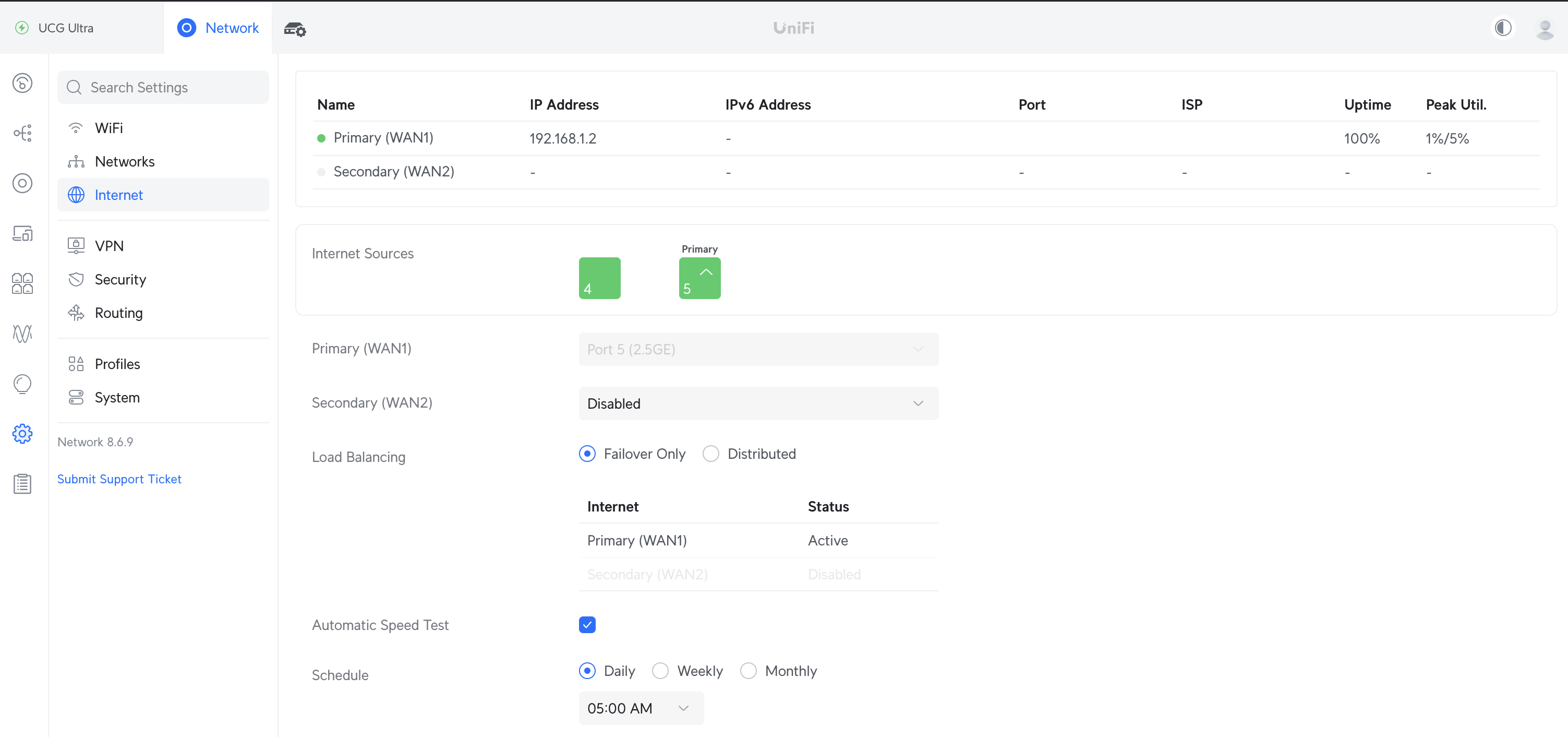
Open the Network App and go to Settings > Internet.
-
Select the Primary WAN (or Secondary WAN, depending on your setup) you want to configure.
-
Scroll down to the IPv4 Configuration section.
-
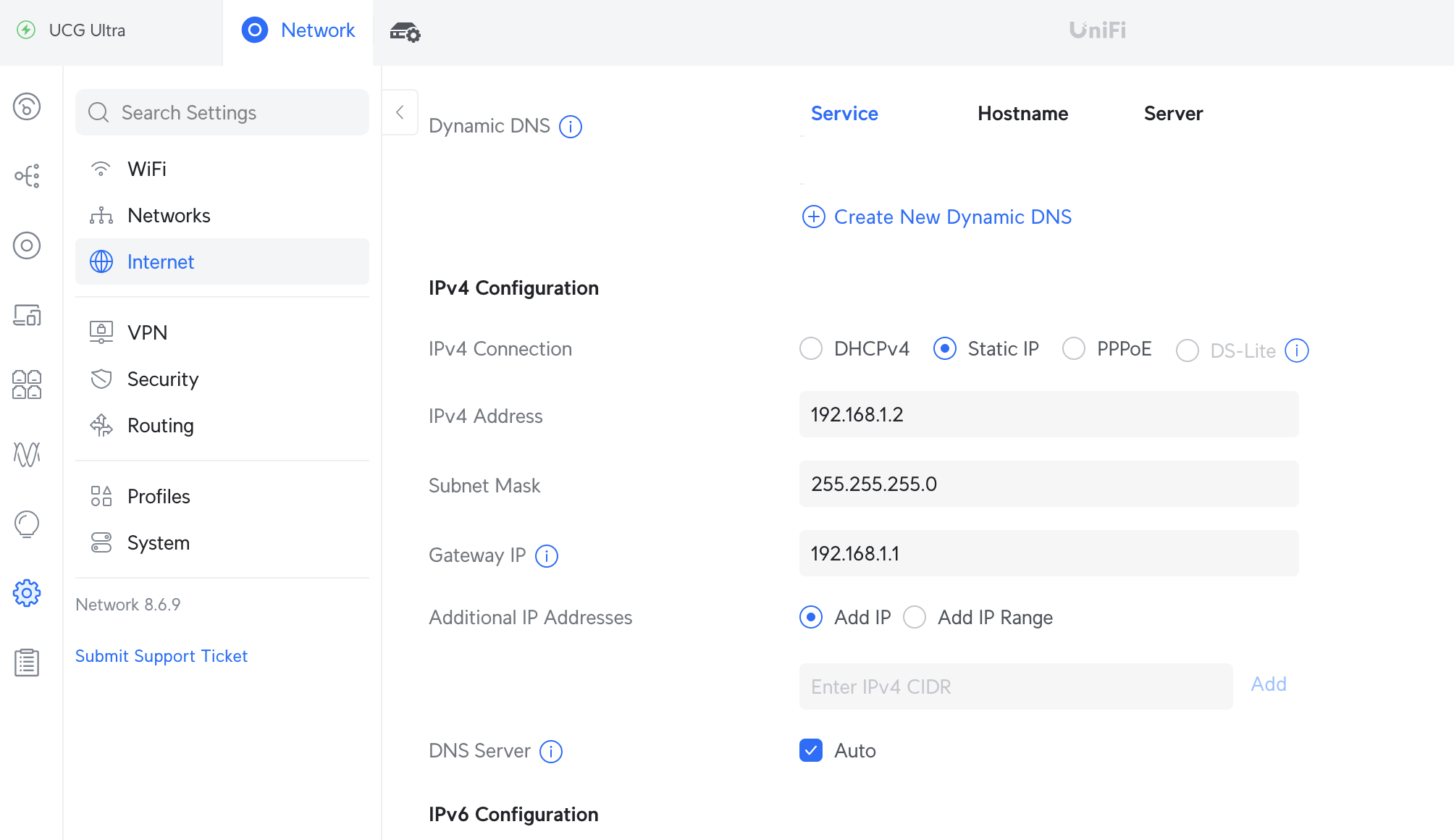
Change the setting from DHCP to Static IP.
-
Enter the desired static IP address, along with the required subnet mask, gateway, and DNS information. The IP should be in the same subnet as the ISPs router.
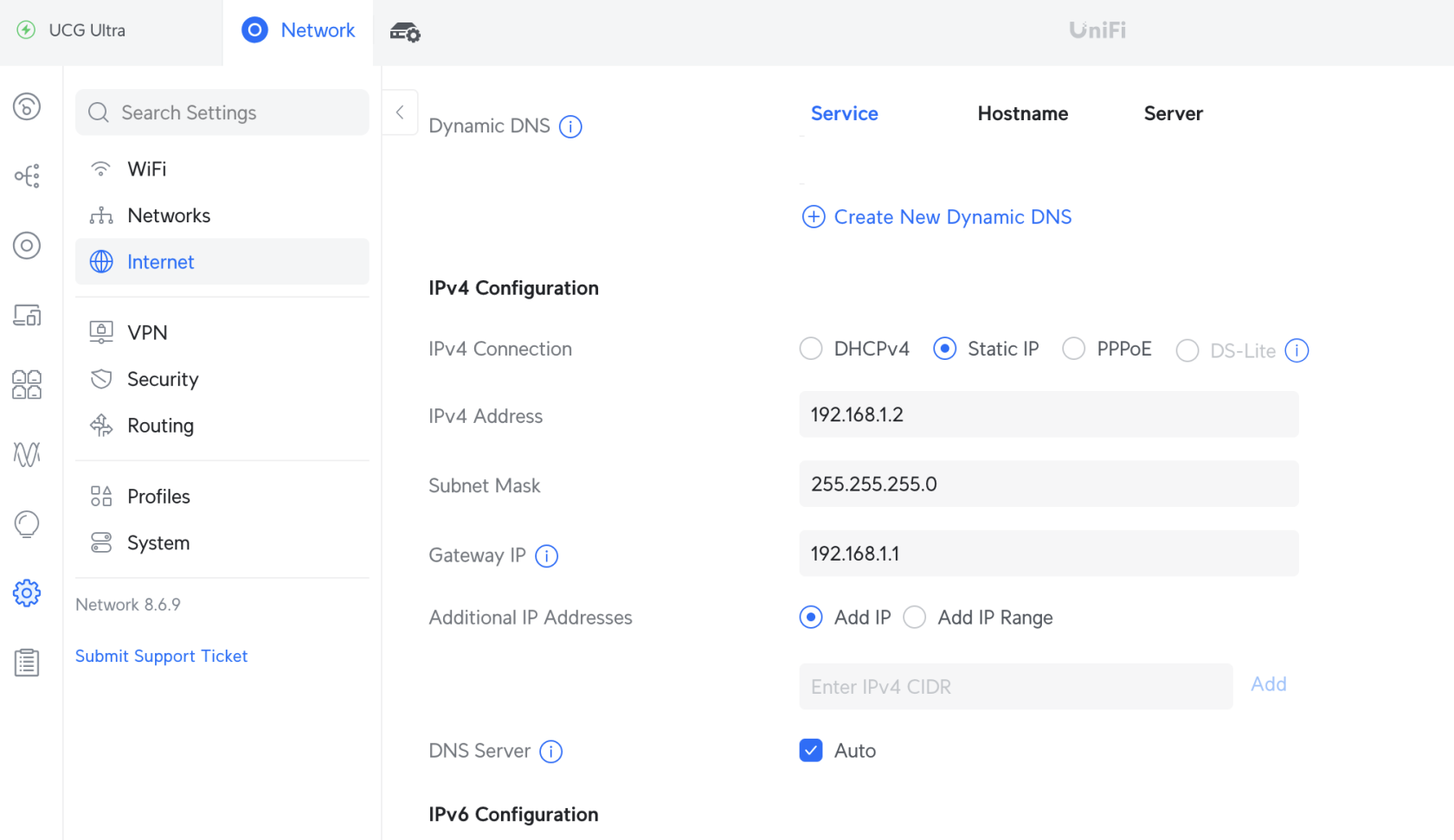
By doing this, you can ensure the UCG Ultra operates with a consistent IP address, even without an active DHCP server on your ISP router.
No comments to display
No comments to display