Syncthing + FileBrowser Quantum
Setting up Synching in Proxmox is really easy. You can do it by yourself, or just use the pre-made Community Script for it.
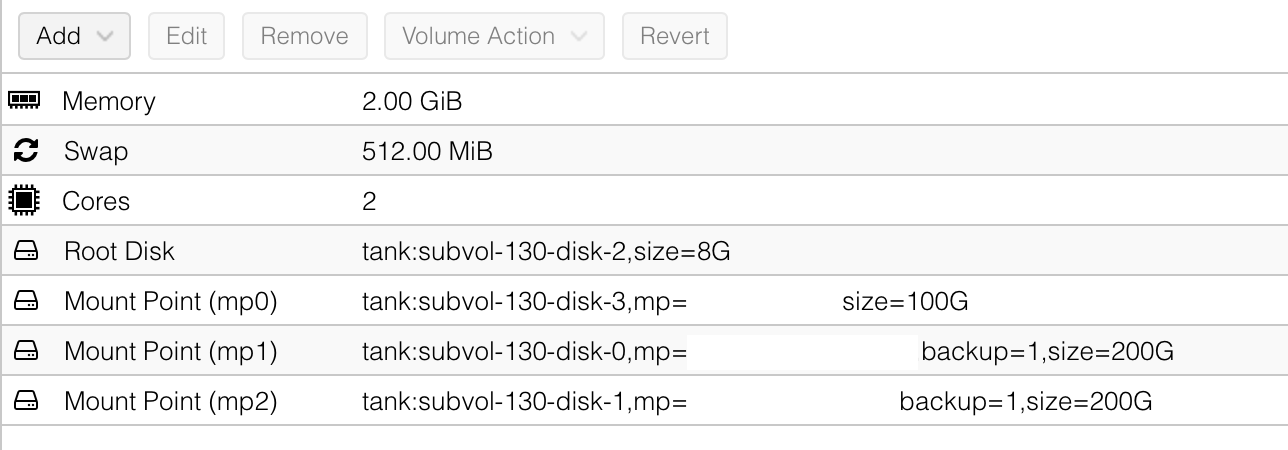
I used the script which created an LXC with maximum 2 GB RAM, and gave it 2 cores. Mainly for larger file transfers, but it should use way less that that maximum under normal circumstances. Just to be on the safe side.
If you want to set it up on your own, create a LXC with the settings below.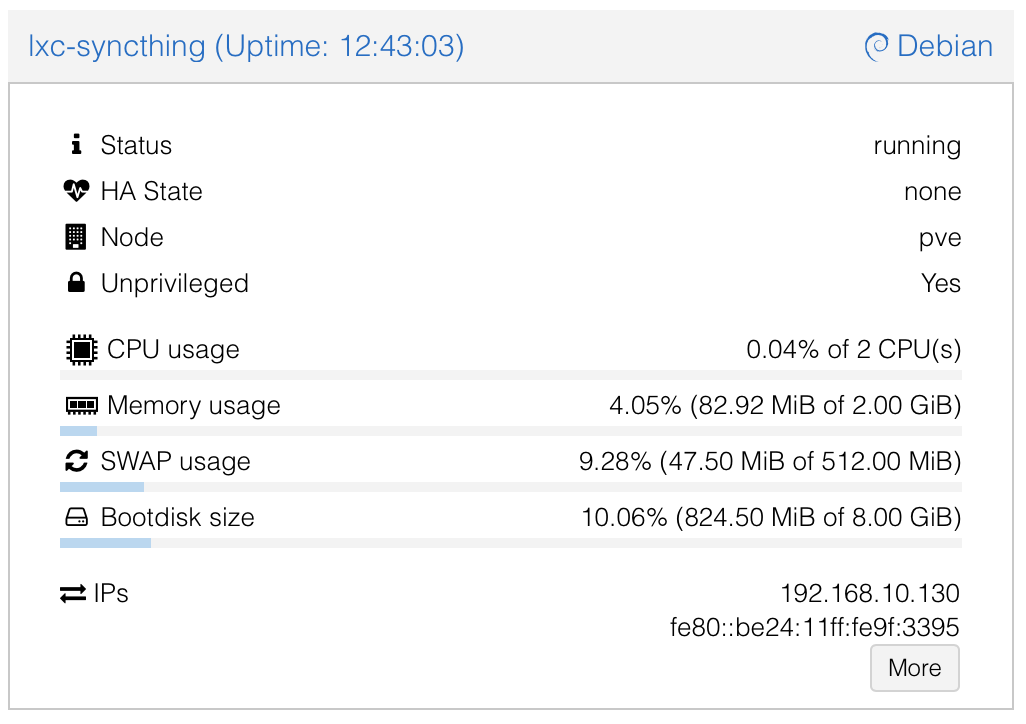
After the LXC is created, open a console and install Syncthing via the Debian Package Repository.
Creating a user and moving the configuration files
The Community Script does not create a separate user for syncthing, as such, we will do it now.
1. First we need to disable the syncthing service which is run under root
systemctl stop syncthing@root
systemctl disable syncthing@root
mkdir /data
chown -R syncthing:syncthing /data
chmod -R 750 /dataAnd check if this is not running anymore
systemctl list-unit-files | grep syncthing2. Create Syncthing System user
adduser \
--system \
--group \
--home /var/lib/syncthing \
--shell /usr/sbin/nologin \
syncthing3. Copy current config
The current config is here: /root/.config/syncthing
mkdir -p /var/lib/syncthing/.config
cp -a /root/.config/syncthing /var/lib/syncthing/.config/
chown -R syncthing:syncthing /var/lib/syncthing4. Create and assign data folder
mkdir /data
chown -R syncthing:syncthing /data
chmod -R 750 /data5. Start Syncthing as syncthing-User
systemctl enable syncthing@syncthing
systemctl start syncthing@syncthing
Check status
systemctl status syncthing@syncthing